From whole-day preparation to a timed programme
Free
Prepare over several days, then run the wedding day by the clock: one plan holds whole-day dates and clock times.
Get started
Prepare decorations takes five whole days. Doors open waits for it and for the fixed Wedding day milestone, starting at 09:00. Sound check follows at 13:00, then Ceremony at 14:00. The animation moves Wedding day one day later; the programme keeps its times and Clean-up follows, while the preparation stays put.
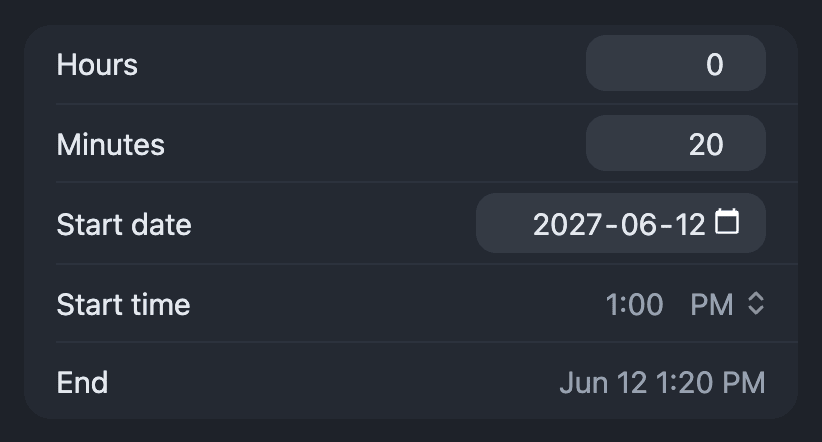
- Open the activity and turn on Plan in hours under Advanced. It starts at 09:00 and one hour; enter your start date, time, hours and minutes.
- Check the displayed end: 13:00 plus twenty minutes ends at 13:20.
- Select its predecessors under Depends on; following work moves when needed.
- For an exact handover, use Plan in hours on a milestone too, and make it fixed when work must wait for that moment.
More things to do
Save a List view as an agenda
Choose List and show Activity, Start and End, plus a dimension such as Responsible. Click Start to sort earliest first; click again to reverse. Add Description if the people running the day need instructions. Save the view as Agenda, or choose Save changes to update a saved one: columns, filters and sort are saved together. Reopen it on the day and open a row for the full activity.
Zoom in on the programme
Use Show day on an activity, milestone or timeline day heading, then zoom to hours and minutes. In a custom Timeline view, Save frame keeps the visible time range when you save the view. Timeline views explains the other presentation choices.
How it works
A timed activity has a start time and a length
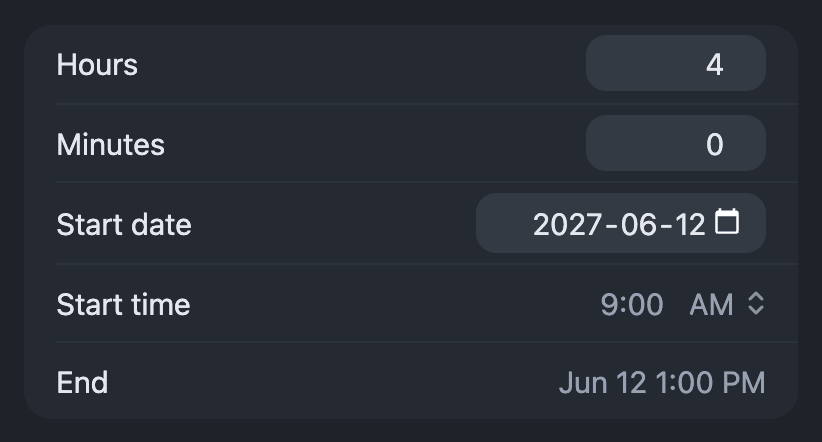
Turning Plan in hours on supplies a new start time and length; review them before saving. The end is displayed with its date when the activity crosses midnight. Turning it off keeps the dates the activity covers and schedules it as whole days. A milestone can use Plan in hours for an exact moment, or stay a whole-day date. A saved change can move its successors, and one undo restores the change and its scheduling effects.
The predecessor sets the earliest start
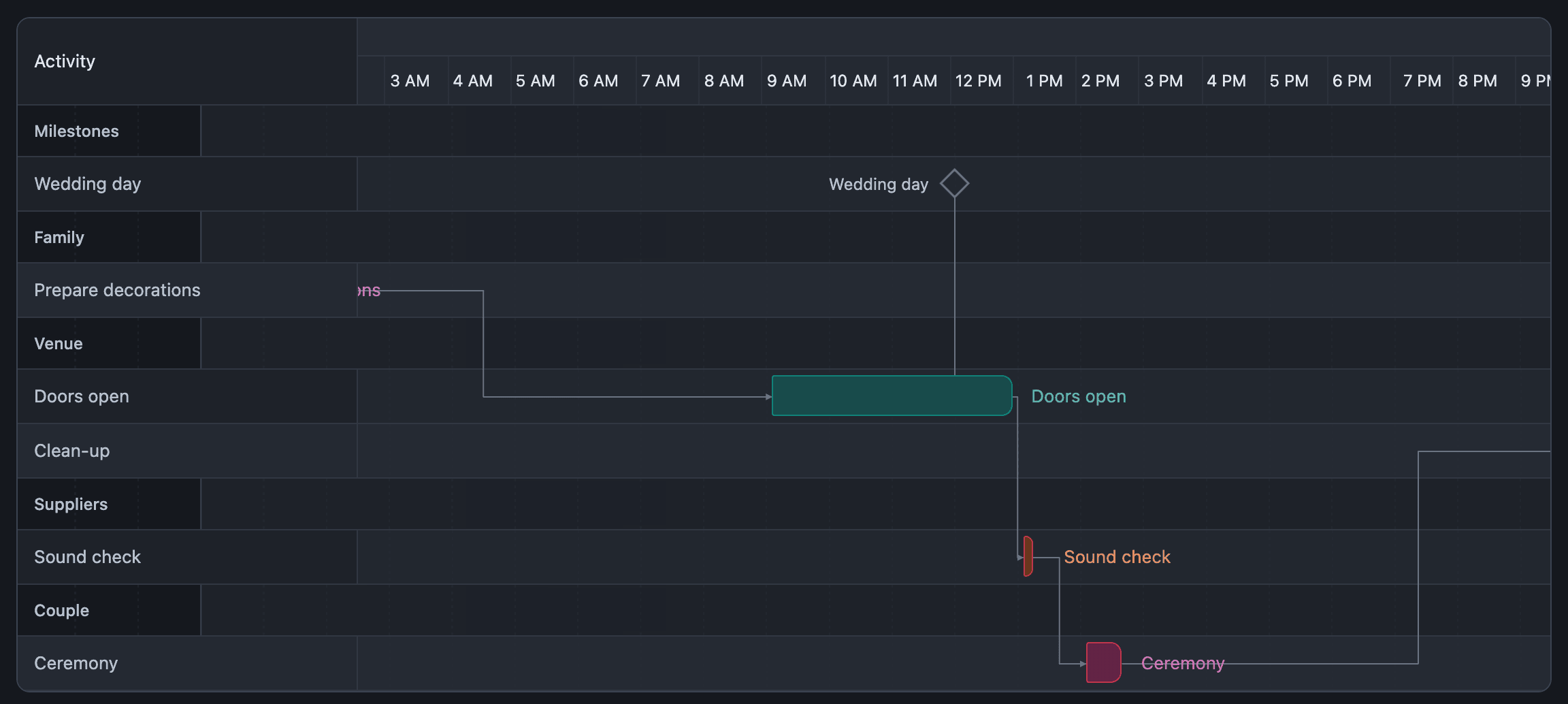
An activity that waits for another normally starts no earlier than its finish. A fixed milestone allows a start at its own date or time. The successor may start later, leaving an intentional gap. These are the boundaries before any work-day adjustment:
| Predecessor | Successor | Earliest start |
|---|---|---|
| Whole-day activity ending 11 June | Clock activity | 12 June at 00:00 |
| Clock activity shown as ending 12 June at 15:00 | Clock activity | 12 June at 15:00 |
| Clock activity shown as ending 12 June at 15:00 | Whole-day activity | 13 June |
| Fixed date milestone on 12 June | Clock or whole-day activity | 12 June at 00:00, or that date |
| Fixed clock milestone on 12 June at 14:00 | Clock activity | 12 June at 14:00 |
| Fixed clock milestone on 12 June at 14:00 | Whole-day activity | 13 June |
A whole-day activity starts only at midnight. Round its earliest allowed moment up to the next midnight unless it already falls exactly there. A clock activity ending exactly at 00:00 therefore allows whole-day work on that date. Whole-day end dates include the entire last day; clock end labels show when the occupied minutes finish. A one-minute task at 10:30 reads 10:30-10:31 and can be followed at 10:31.
In this guide, Doors open leaves nine hours after the earliest allowed start at midnight. Ceremony finishes at 14:45, so whole-day Clean-up waits until 13 June. The complete wedding example instead gives Clean-up a clock time of 11:00 after the overnight party: it is a separate illustration of a timed successor.
Moving a predecessor preserves gaps and lengths
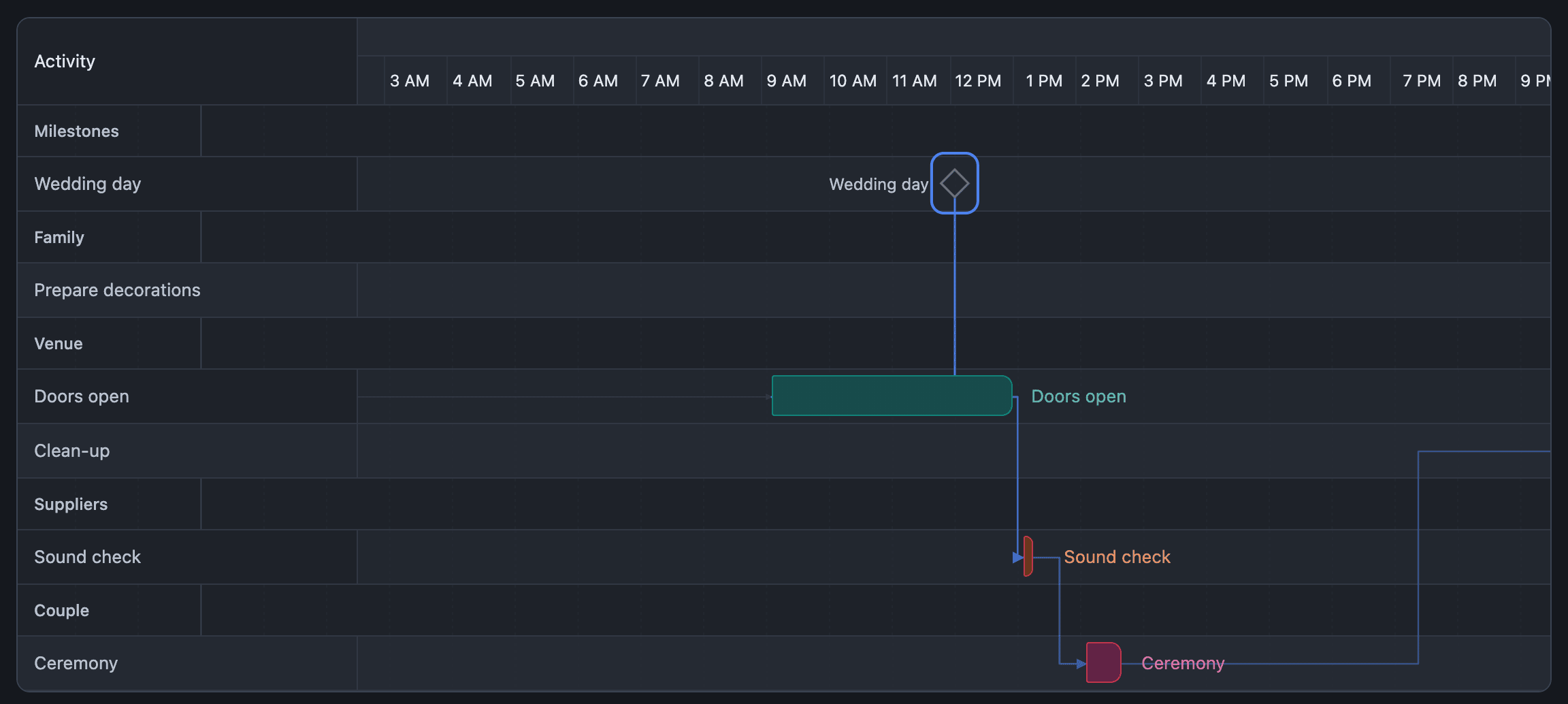
Gaps are measured in the successor's own units: days for whole-day work, minutes for timed work. Moving Wedding day one day later keeps Doors open at 09:00 and preserves the later programme's lengths and gaps. Moving a successor does not move its predecessors.
A whole-day successor moves when its earliest start crosses a midnight boundary. Extending Ceremony from 14:45 to 18:00 leaves Clean-up on 13 June. Extending it past midnight into 13 June moves whole-day Clean-up to 14 June. Several predecessors all constrain the start; another predecessor may prevent work from moving earlier. Moving dependency chains explains deliberate gaps, multiple predecessors and Compact the plan.
Work days apply to whole-day work
In a work-day plan, whole-day activities skip weekends and vacation periods even when they follow a clock activity. Whole-day work after a Friday afternoon finish starts on Monday, or later if Monday is a vacation day. This guide's plan uses calendar days, so the Sunday clean-up is allowed.
Clock activities run through nights, weekends and vacation dates. A 22:00-02:00 deployment crosses midnight without pausing. Night shading and weekend shading help you read the timeline; they do not reserve or exclude time. Percentage overlap choices apply only between two whole-day activities. When either activity uses clock times, the successor waits for the finish. Reported completion does not release a dependency.
An agenda sorts by Start, then by time of day
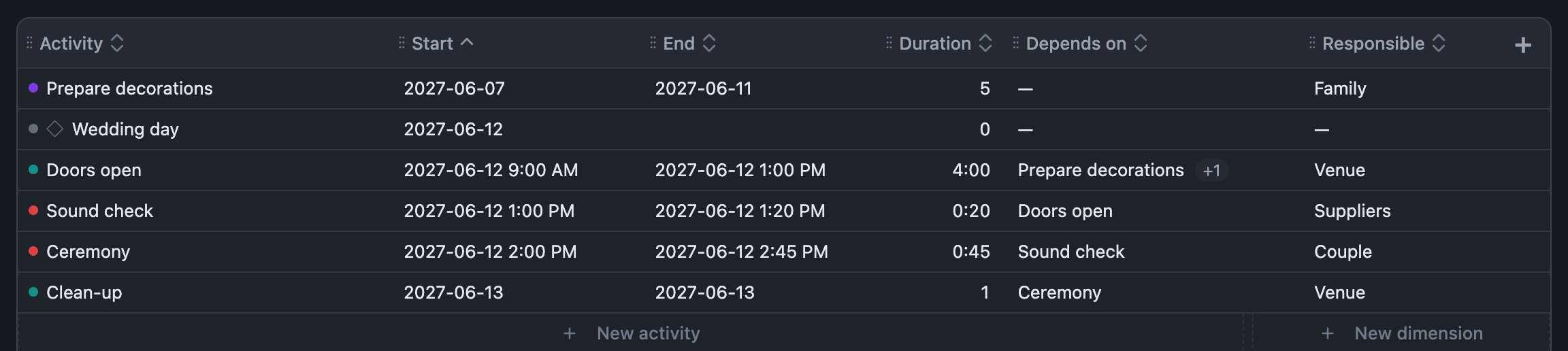
Start sorts by date and then time, so 09:00, 13:00 and 14:00 appear in that order on one day. A whole-day value sorts at that day's midnight. Sorting by Start or End also includes visible milestones at their moment, before activities at the same moment. End orders activities by their finishing boundary; Duration orders by length instead of start time. Whole-day preparation comes before the wedding date and the timed programme; Clean-up comes last.
The optional Description column shows up to three lines; the activity card holds the full text. Sorting and filtering change the presentation. They do not change dates or dependencies. After an edit, a row stays in place while you work; reapply the sort or leave List and return to refresh the order. See Board and List for column and keyboard controls.
Times belong to the plan's local clock

Use Settings to choose a 12- or 24-hour display; it changes labels, not the schedule. The plan's time zone is shown in Properties and places its times in calendars. Travelling or opening the plan elsewhere does not convert its 14:00 into the viewer's local time. Lengths use wall-clock minutes, including across daylight-saving changes. An incoming milestone keeps its source's date or local clock time when you take it in, with no conversion between plan time zones. Review that context before relying on a handover.
Limits and access
- Free, in the browser and in every Tidigar app.
- Clock times run through nights, weekends and vacation dates; there are no per-hour working calendars.
- Tidigar does not detect double-booked people or rooms.
- Files, compact share links and Markdown preserve both dates and times.
Related
- Moving dependency chains: gaps, several predecessors and compacting.
- Board and List: columns, sorting and keyboard controls.
- Timeline views: framing and saving a time range.
- Incoming milestones: handovers from another plan.
- Conference example: a fixed event date, preparation planned backwards from it, a board and a checklist.