Follow a date from another plan
Free Tidigar Business · Paid
Your launch waits for IT. Take IT environment ready from the IT plan as an incoming milestone: if IT moves the date, your plan keeps the accepted date until you choose Take in.
Get started
The frame shows the receiving plan alone: the launch waits for a fixed milestone on 8 June, and Brief the team does not. It has no connected IT plan, red dot or Take in. Open in Tidigar, move IT environment ready to 15 June and watch Launch the service follow while Brief the team stays put.

To connect your own plans:
- In the IT plan, save a milestone named IT environment ready. For a private plan, open it and turn on Outgoing milestone to offer its title and date.
- In the launch plan, add an activity or milestone. Below Workflow, choose Add incoming milestone, then select IT environment ready under Choose from another plan. The card becomes that milestone, with a length of 0.
- Under Waited for by, select Launch the service, then save. Its name, date and kind come from IT and cannot be edited here.
More things to do
Spot a changed date
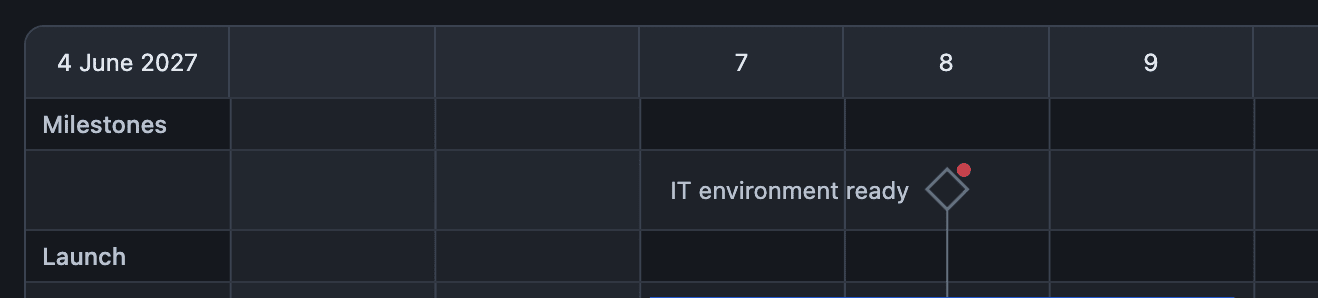
You took in 8 June; IT changes it to 15 June. IT environment ready stays on 8 June with a small red dot in Timeline. The dot also appears if the source was removed.
Take in the new date
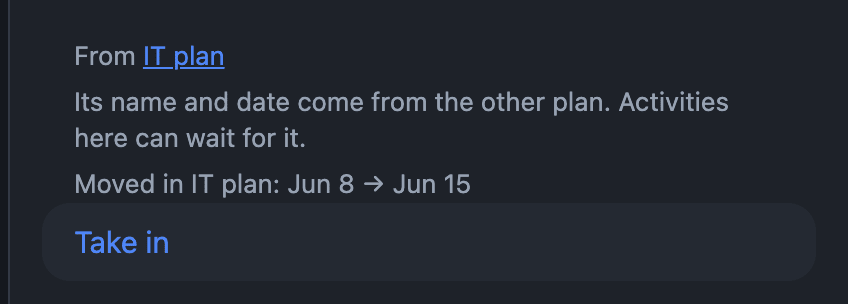
- Open the marked milestone and compare the dates.
- Choose Take in to use the source’s current date.
- Review Launch the service and what waits for it; Brief the team stays put.
Follow a central period
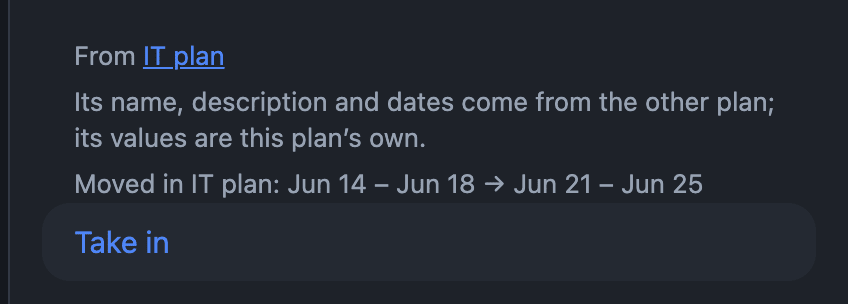
A central plan can hold company holidays or a change freeze as periods. In your plan, add an activity with Non-working period on under Advanced, or add a period. Below Workflow, choose Add incoming period, select the period, then save.
How it works
Names follow; dates wait for your decision
An incoming milestone is a fixed copy of a milestone in another plan, with a connection back to its source. Its title follows source renames automatically when the receiving plan can be changed. A new source date waits for Take in, so another team’s rescheduling does not silently reschedule your work. The warning disappears when your accepted date matches the source again. Milestones explains fixed dates and milestones that follow work.
A warning stays until you decide
The card says Moved in IT plan: Jun 8 → Jun 15 and offers Take in. This is a warning in the plan: Tidigar sends no separate popup, push notification or email about the moved milestone. The date field shows the date your plan has accepted and is disabled; Take in copies the source’s current date (and title) instead of opening a date picker. Opening or closing the card does not clear the dot, and leaving without taking in keeps the old date and the warning. After Take in the dates match and the dot disappears; if the source moves again, it returns. You can open the source plan from its name when you have access.
Only linked work follows a taken date

Only activities linked to the milestone wait for it, according to their dependencies. Similar titles or dates do not create a dependency. An incoming milestone cannot be offered onward as another plan’s source.
A period is taken in whole, and keeps your values
An incoming period’s title, description and dates come from the central plan and cannot be edited here. If the dates move, the band in Timeline gets the same red dot and the card says Moved in with both date ranges. If only the title or description changed, the card says Changed in. Take in copies the title, description and dates; the values stay your plan’s own. In a plan in work days, taking in new dates reschedules the work around them, so this never happens without your choice. A removed source offers Make it our own, as for a milestone. For a private central plan, turn on Outgoing period on each period to offer it.
A removed source leaves your accepted date intact
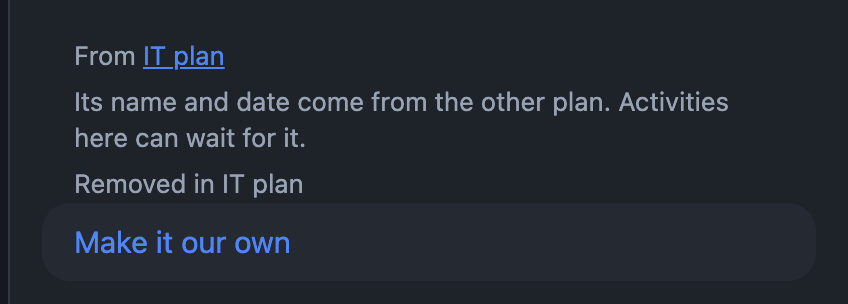
If the source milestone is no longer available in the source information, its card says Removed in IT plan and offers Make it our own. This removes the connection and keeps the milestone as your own fixed milestone on the accepted date. Waiting activities retain their relationship to it. Its title and date then become editable here.
For a private source, turning off Outgoing milestone can also make the milestone disappear from the offered information. A removal warning therefore does not always mean that someone deleted the milestone itself. Ask the source plan’s owner before deciding to make it your own.
Offline means the latest information on this device
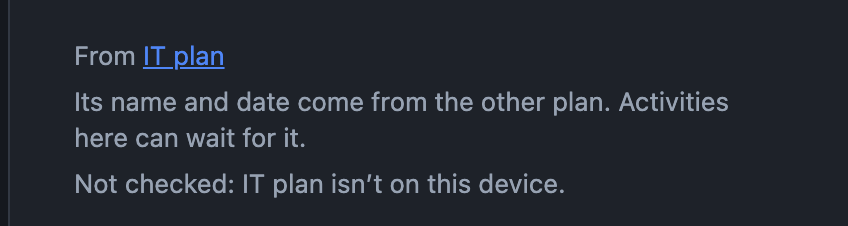
Tidigar compares against the latest source information available on this device. Stored source information refreshes with the organisation’s plan list; changes can take about a minute to appear.
Offline, a known source can still show a moved date and let you take it in, provided you can edit the receiving plan. That comparison may be older than the source’s actual current state. If no source information is available, the card says Not checked, with the last comparison time when one was recorded. No warning dot is not proof that an unavailable source is up to date. Reconnect and check before relying on the date.
Access still belongs to each plan
Taking a milestone does not grant access to its source plan. Open and protected stored plans offer their own milestones. A private plan offers only milestones explicitly marked Outgoing milestone, even to people who can read that private plan. The offered information includes its plan name, milestone title and date, so choose names suitable for the organisation.
When you cannot open a private source, its name is shown without an opening link. Readers can inspect changed dates; taking in a change or making a milestone your own requires permission to change the receiving plan.
The source shows who uses its milestone
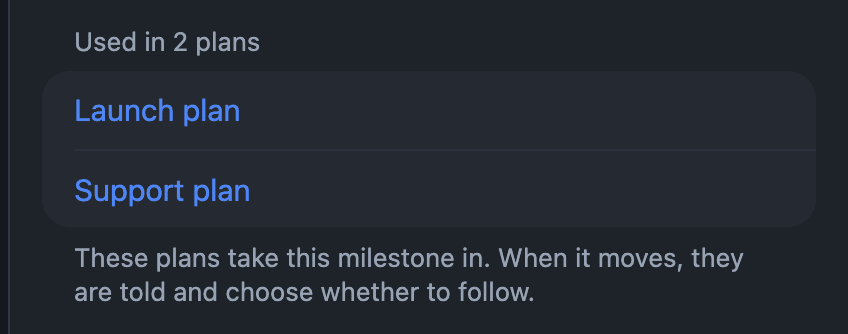
Open the original milestone to see Used in and the receiving plans. Where permitted, selecting a plan opens it at its incoming milestone. A private receiving plan you cannot access appears as A private plan, without an opening link. The list helps you discuss a change with the affected teams. It does not stop the source owner moving a date, and it does not force receiving plans to take that date in.
Limits and access
- Both plans must belong to the same organisation in Tidigar Cloud or on the same Tidigar Server.
- Choosing nothing under Choose from another plan leaves a new card as it was.
- Taking in a change or making a milestone your own needs permission to change the receiving plan.
- A private source plan offers only milestones and periods marked Outgoing.
- An incoming milestone cannot be offered onward.
Related
- Milestones: fixed dates and milestones that follow work
- Dependencies: how waiting activities move
- Vacation and working days: non-working periods
- Teams and permissions: plan access and outgoing milestones