Plan and follow up project costs
Free
A training day needs a venue, course materials and a trainer. Give each activity an estimated cost and a phase, then use List to see what each phase is expected to cost.
Get started
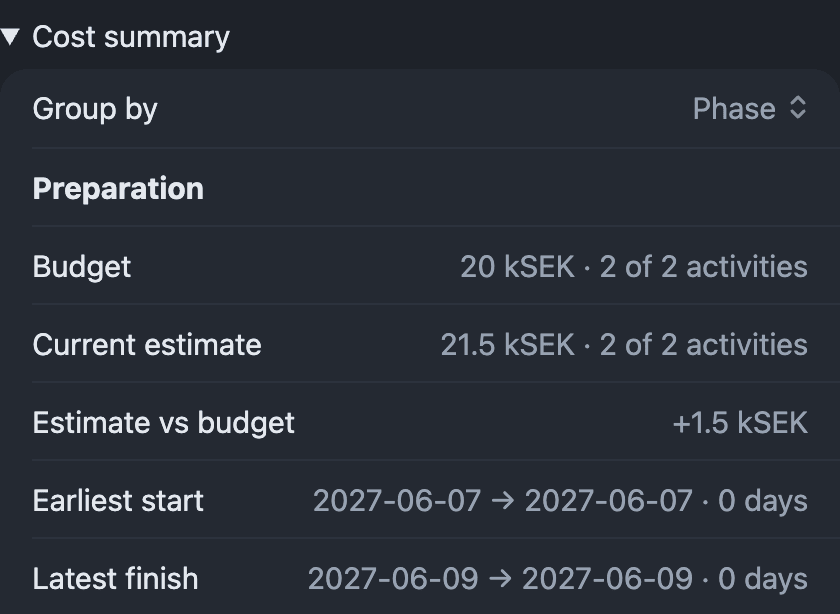
The example uses thousands of Swedish kronor (kSEK). In the summary above, Preparation adds up to 21.5 kSEK and Delivery to 35 kSEK. Print signs has no phase, so its 5 kSEK sits under No value and the total is 61.5 kSEK. Choose Open in Tidigar to try the steps.
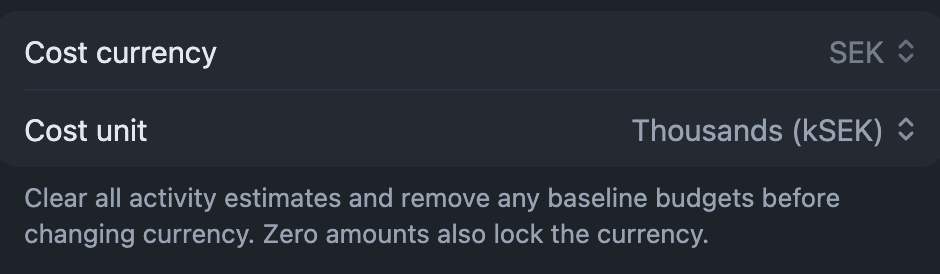
- In Properties, choose the Cost currency. Under Cost unit, choose Units or Thousands to enter
12.5for 12,500.
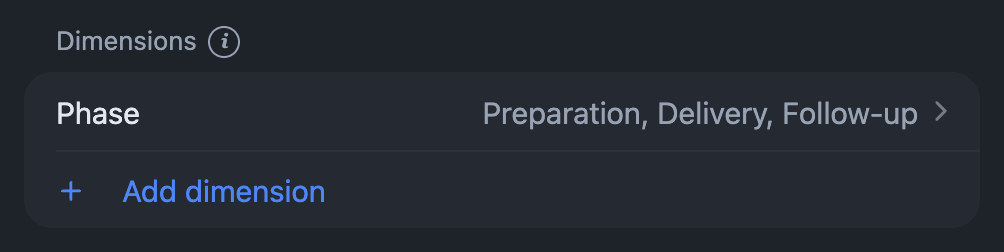
- Under Dimensions, create Phase, add its values and give each activity one.
- In List, select an Estimated cost cell and type. Enter saves and moves down, Shift+Enter up, Tab across. The card's Advanced section has the same field.


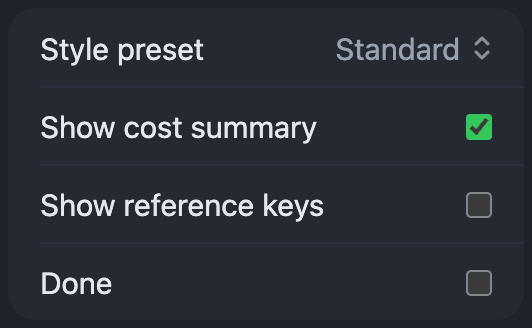
- Choose Customize View… → Show cost summary, open Cost summary above List and set Group by to Phase.
More things to do
Fill in the missing estimate
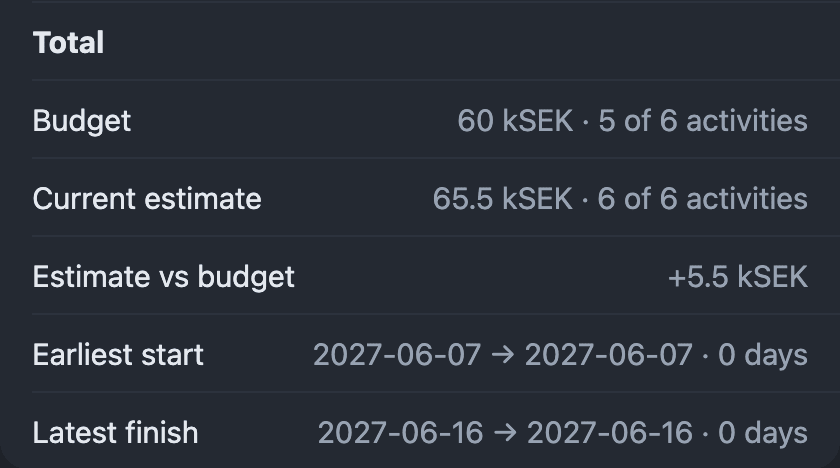
Gather feedback has no estimate. Enter 4 and the total rises to 65.5 kSEK.
Follow costs against the budget
- In a writable Cloud or Server plan, enter the estimates, then in Properties name the baseline and choose Save baseline. A saved Follow-up List appears if none shows tracking columns. The example already has one.
- Keep Estimated cost current: the expected cost before work starts, what it cost once done. The budget stays.
- Choose Follow-up in the saved-view menu and compare Budget, Current estimate and Estimate vs budget. In the example, change the materials' estimate from
14to13to watch the totals fall.
How it works
The summary follows the filters and search
The summary counts the activities that match the current List filters and search, so clear them before reading the whole plan. Filter Phase to Preparation to see its two activities and 21.5 kSEK. Search for “materials” and Preparation shows 14 kSEK, because only Prepare course materials matches. Group by a different dimension, such as Team, to see the same visible costs from another angle.
A blank estimate is missing and zero is known
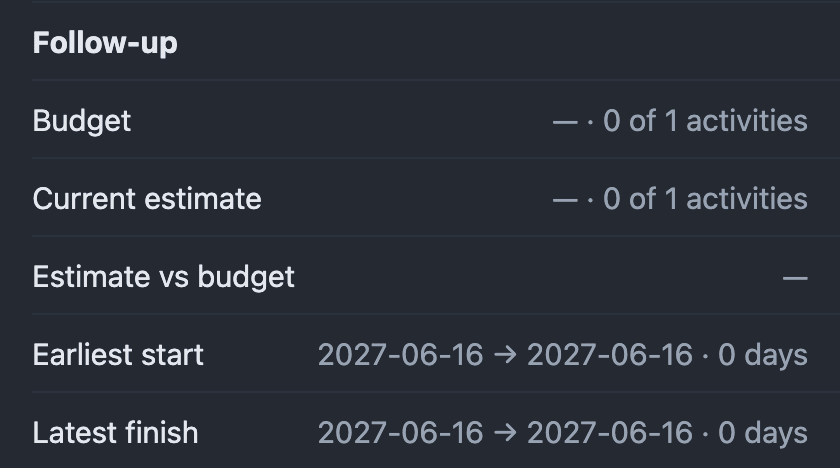
Enter 0 when you expect an activity to cost nothing, as with Send joining instructions. Leave a cost blank while you still need an estimate. The summary counts blanks separately and shows a dash for groups with no estimates.
Board and Timeline show group costs too
Board columns and Timeline group headings add up the matching activities that each view can show. Board can include work without dates and adds matching cards across all rows; Timeline counts only activities placed on the timeline. A group with no estimates shows a dash and a recorded zero counts. In your own plan, turn on Show cost summary in Customize View… and set Board Columns, or Timeline's grouping, to Phase. Preparation shows 21.5 kSEK, or 14 kSEK when a search for “materials” leaves one activity. Pictures exported from Board or Timeline include these amounts.
The baseline holds the estimates at capture time
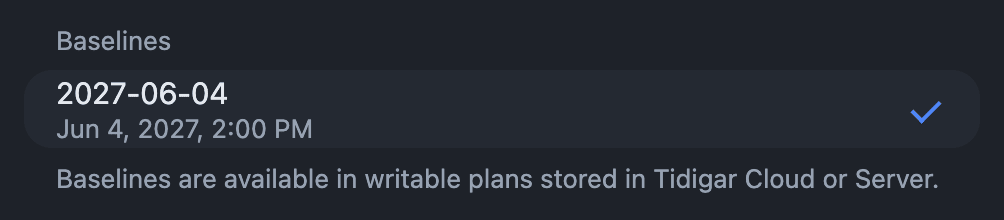
Editing current estimates does not change the budget. Save new baseline saves the current schedule and estimates as a new budget and makes it active; earlier baselines are kept. Choosing an earlier baseline in Properties compares with its budget again, and removing a baseline discards its budget. These actions keep saved views. Use them deliberately rather than resetting the budget whenever costs change.
Each activity has one estimated cost, so there is no separate actual cost or forecast to keep in step: the current estimate is the forecast while work is open and the outcome once it is done.
Follow-up compares budget with estimate
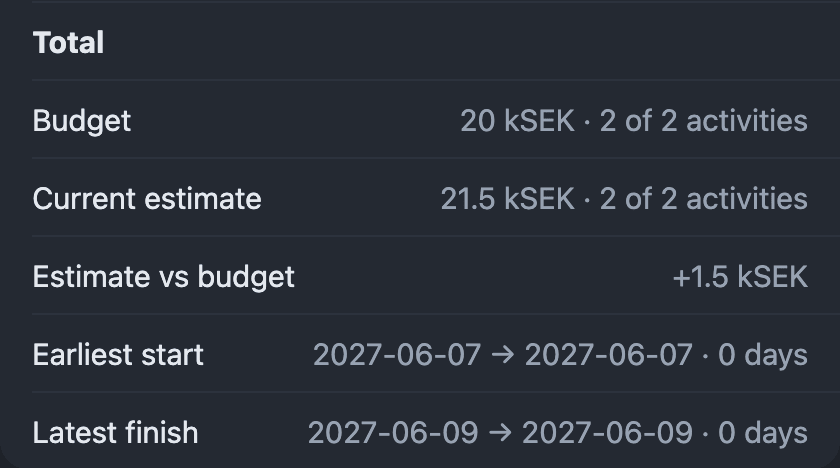
In the example, the whole plan has a 60 kSEK budget and a 61.5 kSEK current estimate, +1.5 kSEK over budget. Budget and estimate each cover five of six activities. Prepare course materials is +1.5 kSEK over its budget, and Preparation as a whole is +1.5 kSEK over its 20 kSEK budget. The comparison column subtracts the budget, so a positive difference is above budget.
After the change to 13, Preparation's estimate becomes 20.5 kSEK and the whole plan's 60.5 kSEK, +0.5 kSEK over budget. Filter Phase to Preparation to compare just those two activities, then clear the filter. Save changes to the saved view if you want to keep its cost grouping; each saved view has its own visibility and grouping.
The summary follows List filters and search here too. Coverage counts show how many visible activities have each kind of amount. Activities added after capture have no budget; the scope counts also identify added and removed work. The budget of removed work stays in its phase and the total while the filters and search match its saved values and name, so Estimate vs budget compares what was planned with what is planned now.
Currency and unit apply to the whole plan
Switching between units and thousands preserves estimates and baseline budgets. Any of those amounts locks the currency, including zero. To change currency, clear the activity estimates and remove the baseline if it contains budgets. Changing currency does not convert amounts.
The decimal separator is a personal choice
In Settings → Decimal separator, choose Follow language, Comma (,) or Point (.). The choice applies to your display. The cost field accepts either separator, so 12,5 and 12.5 both work.
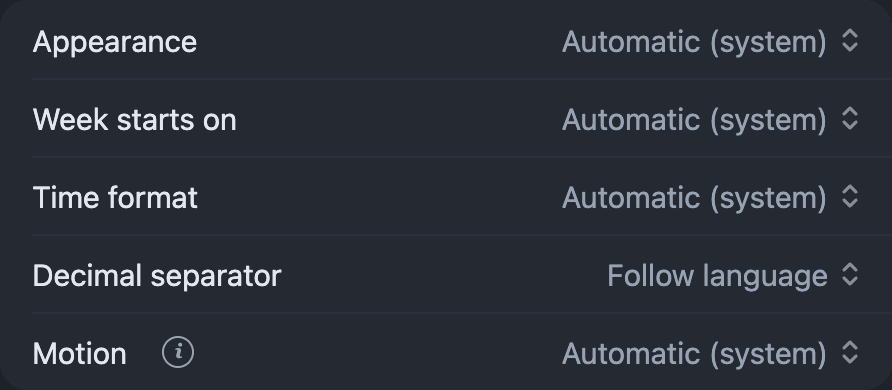
Table (CSV) exports every amount in the base currency
For a spreadsheet, choose Share → Table (CSV). The file includes every activity and its dimensions, regardless of List filters or hidden columns. In a tracked plan, it also includes the budget, current estimate and its difference against budget. All monetary columns use the base currency, so an estimate shown as 12.5 kSEK in List exports as 12,500 SEK. Export pictures and tables has the CSV details.
Limits and access
- Free, in the browser and in every Tidigar app.
- Saving, choosing and removing baselines needs a writable plan in Tidigar Cloud or Server; the example's local copy offers none of them.
- There is no separate actual cost or forecast; the current estimate serves as both.
- The embedded example is a copy for exploration. Choose Open in Tidigar for an editable copy; edits to it do not change this guide.
Related
- Board and List: editing and filtering activities.
- Schedule follow-up: planned and current dates, and the group comparison when work is split.
- Present scenarios: what the project costs if it meets a deadline or runs late.
- Export pictures and tables: CSV details.