Follow the schedule against a baseline
Free
The release review should have finished on Friday, 11 June but ended on Monday, 14 June. A saved baseline keeps the original dates.
Get started
In Follow-up above, Review the release has a Baseline finish of Friday, a Current finish of Monday and Current finish vs baseline of +1 day, counted in work days here. The weekend between them counts as time off.
In Schedule comparison, the dashed outline shows the saved baseline and the activity bar shows the current dates. Send release notes is still open and on schedule, so its bar and outline coincide.
The example already holds a baseline. To track your own schedule:
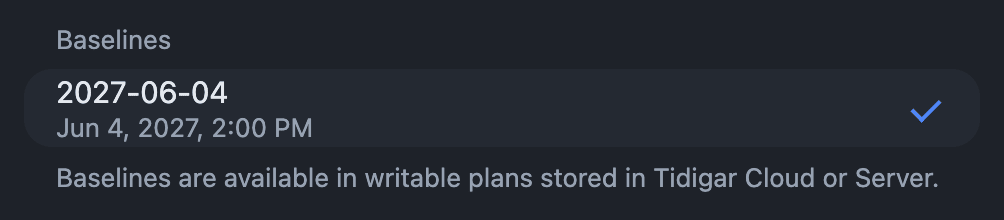
- Open a writable plan stored in Tidigar Cloud or Server. When the dates are ready to use as a reference, open Properties, name the baseline, which starts as today's date, and choose Save baseline. The first save activates tracking and makes a Follow-up List available in the saved-view menu.
- Keep the start and end dates current as work moves. In Follow-up, compare Baseline finish with Current finish. A milestone compares its date.
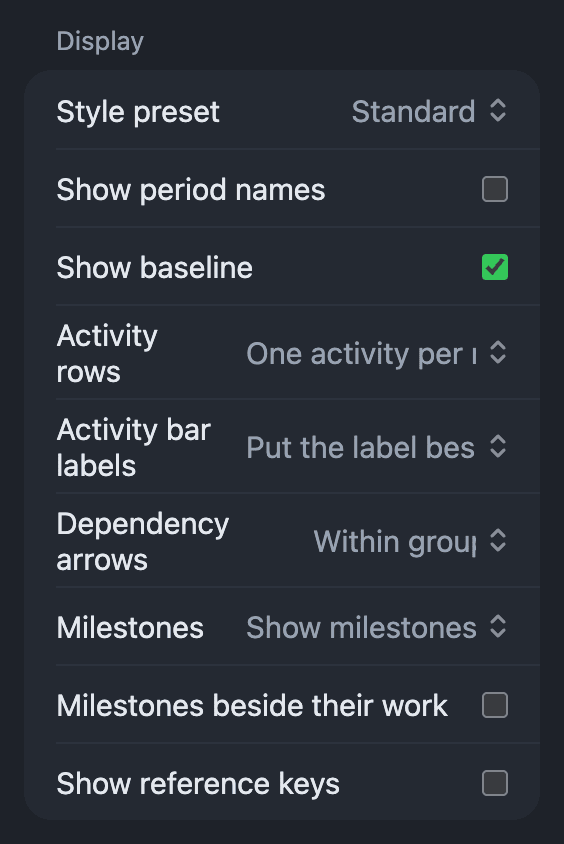
- In Timeline, open Customize View… → Display and turn on Show baseline. Save the view to keep that choice. In List, Customize View… → Columns lets you choose schedule and cost columns independently.
More things to do
See the same delay on a card
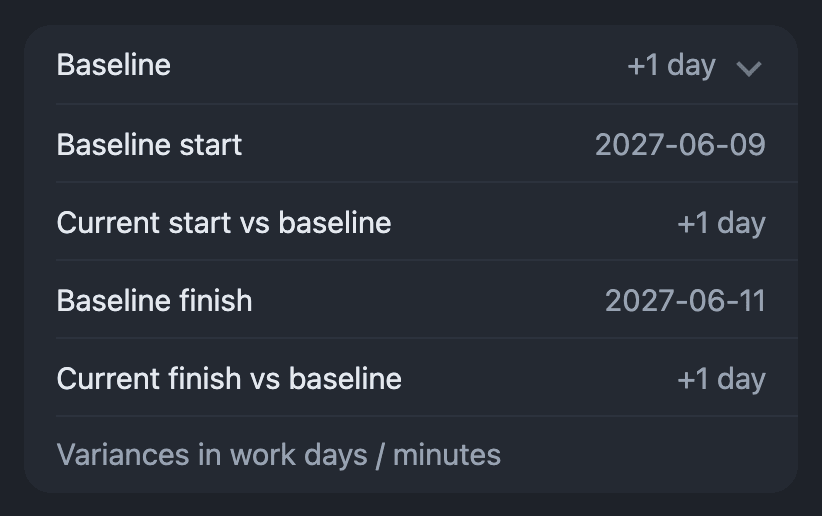
Open Review the release to see the same comparison on its card. Its Baseline row shows the finish variance and opens to the baseline start and finish with their variances, counted in work days in this plan. Work added after the baseline says so, and a value the baseline lacks shows Not in baseline.
Make the delay one day longer
Choose Open in Tidigar for an editable copy. Open Review the release and change its end date from 14 June to 15 June. In Follow-up, its variance grows to +2 days. Switch to Schedule comparison to see the bar end on Tuesday while the saved Friday outline stays where it was.
How it works
The baseline records the whole plan
Saving captures the dates and estimates for the whole plan, including activities hidden by a view filter. Edits to dates or estimates leave that reference in place. Newly added work has no saved dates to compare with. Removed work can still appear in the List report under its saved name.
Properties lists the plan's baselines, newest first, with their names and capture dates. The checked one is active: the List, cards and Timeline compare with it. Use Save new baseline when the current plan should become the reference. It is saved under the name you give and becomes active, and the earlier baselines are kept, up to 20 in a plan. Choose another baseline in the list to compare with it again; no baseline changes after it is saved. To look back without changing the plan, choose an earlier baseline in Compare with under Customize View…, in the Follow-up List or Timeline. Only your view compares with it: the List's tracking columns and summary, the Timeline outline and their exports name it with its capture date, while cards, follow-up status, share links and other readers keep the active baseline. Choose the active baseline to return. The minus button removes a baseline after you confirm, and removing the active one makes the newest remaining baseline active. These actions keep saved views. Readers see the list but cannot change it. A saved tracking List can offer Save baseline again when its columns need a reference. Showing fewer columns or turning off the Timeline overlay changes the view.
When work is split up
The comparison follows each activity. If you split one activity into smaller ones, the original stays in the List report under its saved name and the parts show as added work, so the activity-level variance is gone.
Compare the phase instead. In Follow-up, turn on Show cost summary under Customize View… or show a tracking column, open the summary and choose a dimension such as the phase in Group by. Each group shows its budget and current estimate, its earliest start and latest finish, and how far the current values are from the baseline; Total does the same for the whole List. The baseline side counts work under the value it had when the baseline was saved, removed work included, so the phase keeps the same budget and finish variance after a split. The current side counts the work as it is now. Work in a baseline saved by an earlier version of Tidigar or imported counts under its current value, and its removed work only counts in Total. A value removed from the dimension since shows as Removed value. Filters and search apply to removed work through its saved values, name and reference key. CSV and image exports of a grouped List end with the same group rows in its tracking columns.
Keep the commitment comparable with a milestone. Put the promised delivery in the plan as a milestone before saving the baseline, and let the parts it needs lead to it. The parts can then be split, moved and added while the milestone keeps its saved date, and it moves later when they slip. When the new breakdown is the approved plan, save a new baseline.
Each date has one current value
An activity has one start, one end and one estimated cost; a milestone has one date. Before work starts they are the plan. Once work is done they are what happened. The baseline is the commitment they are measured against, so there is no separate actual date to keep in step.
Marking work done, at 100 % progress, sets its end, or a milestone's date, to today, or to the current minute for work with clock times. A start after today moves to today too, and what waits for the work moves as when you change the end yourself. Undated work stays undated, and Undo brings back the earlier dates with the progress. Reopening work, or other progress changes, leave the dates alone. When work ended on another day, change its end date.
Variances and follow-up status answer different questions
The List compares each current date with its matching baseline date. A positive variance means later, a negative variance means earlier, and a dash means a date is missing from that comparison. Two clock values are compared in minutes. If either value is a date, the comparison uses calendar days or the plan's current working calendar, including its non-working periods. See Working days and Clock times and agendas.
| Status | When it appears |
|---|---|
| Behind baseline | Open work is scheduled to finish later than its saved finish, and its current due date or time has yet to pass. |
| Overdue | Open work has passed its current due date or time. This status takes precedence over Behind baseline. |
| Done, late | Completed work has a current finish after its saved finish. Work without a saved finish is never late. |
| Done | Completed work finished by its saved finish, or there is no saved finish to compare. |
A whole-day due date includes the entire day. A clock due uses the minute. The review in the example is Done, late because it finished on Monday, after the saved Friday.
Limits and access
- Free. Saving, choosing and removing baselines needs a writable plan in Tidigar Cloud or Server; a plan stored only in this browser, like the example, only compares. See Library and storage for moving a plan.
- A plan keeps at most 20 baselines.
- A baseline never changes after it is saved; to follow a new commitment, save a new baseline.
- Readers see the list of baselines but cannot change it.
Related
- Planned costs: the budget behind the cost columns.
- Pictures, printing and CSV: exporting the comparison.
- Screen links: publishing a view with tracking data.
- Working days and Clock times and agendas: how variances are counted.
- Roadmap format: the stored fields.